How to download the Brand Book to your phone
After you buy, you get an email with a download button. It's a 162 MB PDF, so give it a minute on Wi‑Fi. Here's exactly what happens next.
Save it to Files
- Open the email and tap Download. Your browser opens and starts the download.
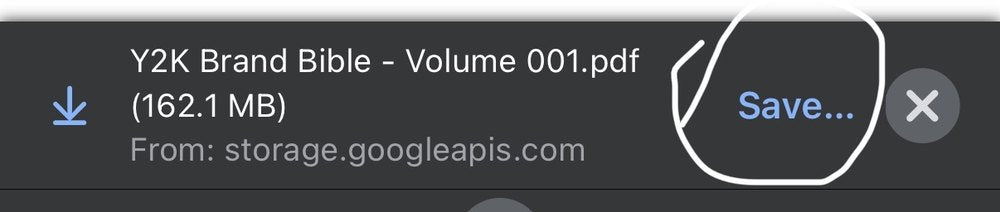
- A bar appears at the bottom with the file name. Tap Save…
Step 2 — tap Save…
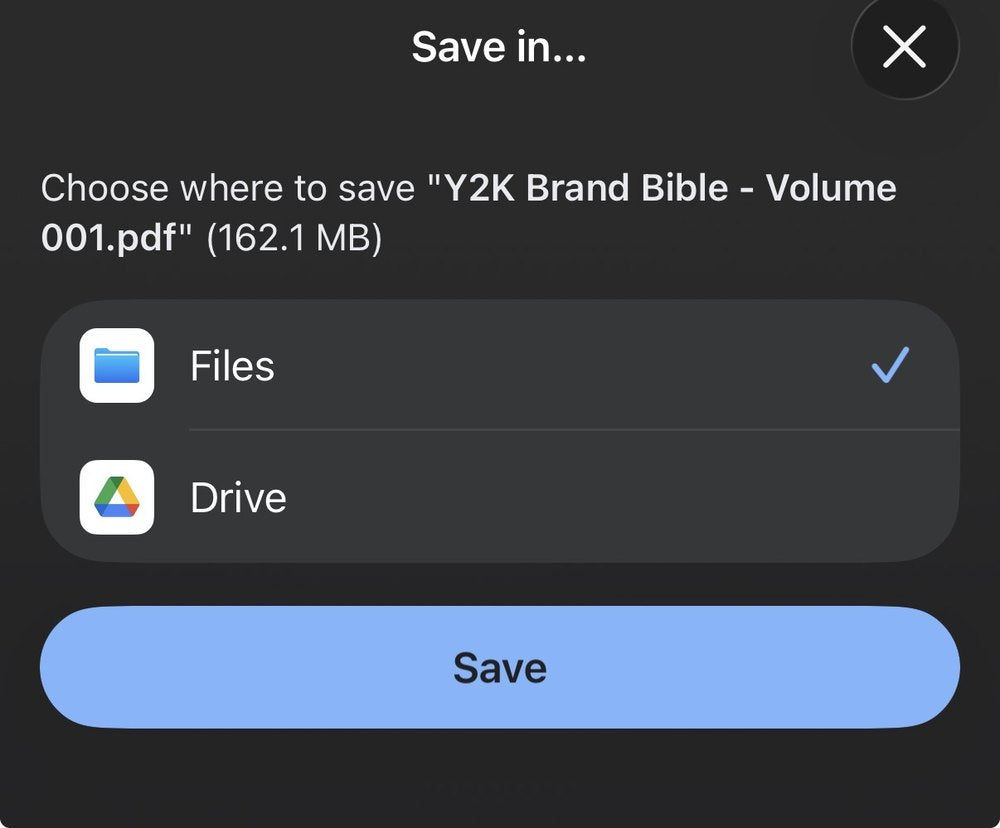
- Choose Files, then tap Save.
Step 3 — choose Files, then Save
- Open the Files app → Downloads (or the folder you picked). Tap the PDF and it opens. Tap any tag in the reference guide to jump to that brand, and click the bottom left corner on any page to take you back to the top.
- Want it in Apple Books instead? Open the PDF, tap the share icon, choose Books. It'll sync to your iPad too.
Using Safari instead of Chrome? Tap Download, then the little download arrow at the top of Safari → the file is in Files → Downloads.
It saves itself
- Open the email and tap Download.
- The PDF saves to your Downloads folder. Pull down the notification shade and tap it, or open Files / My Files → Downloads.
Works there too
- Click Download in the email. It lands in your Downloads folder.
- Open it with Preview, Adobe Reader, or your browser. The tag links work in all of them, and the bottom left corner on any page takes you back to the top.
Your download link works more than once. New phone? Open the same email again. Lost the email? Write to losthairclip@gmail.com and we'll resend it.